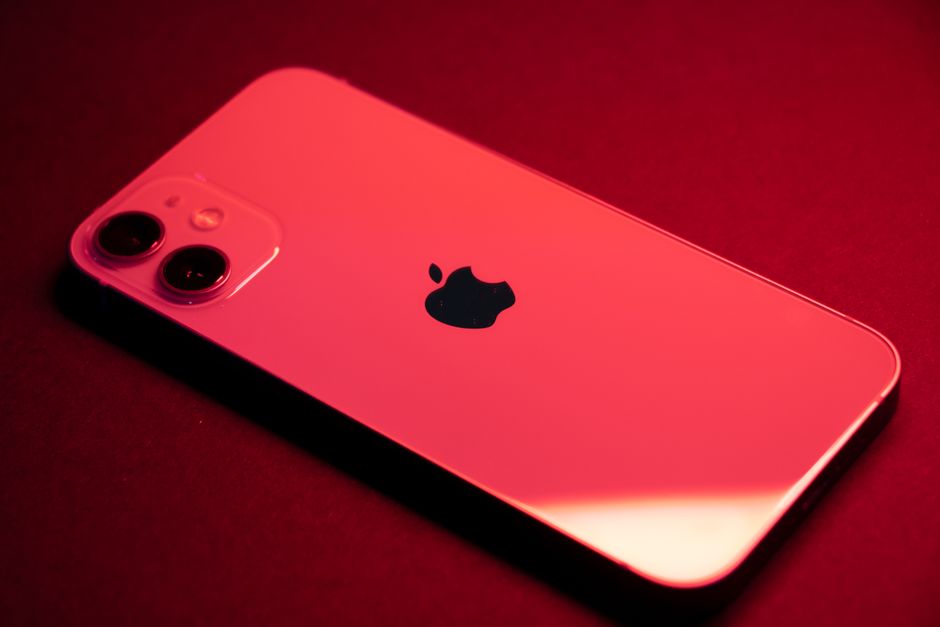
Sharing Between Android and iPhones Just Got Easier Than Ever
For years, the "green bubble vs. blue bubble" debate wasn't just about aesthetics; it was a digital wall, especially when it came to sharing files. Swapping photos, documents, or even contacts between an Android phone and an iPhone often felt like an unnecessarily complex chore, involving third-party apps or clunky workarounds.
Well, get ready to breathe a sigh of relief, because the tide has finally turned.
AirDrop for Android? Believe It!
One of the biggest breakthroughs landed late last year: Google engineered a way for some Android devices, starting with the Pixel 10, to receive files via Apple's AirDrop. Yes, you read that right. That seamless, peer-to-peer sharing magic is now spreading across more Android handsets, with even more models slated to gain this functionality in the coming months. This is a game-changer for anyone regularly sharing from an iPhone to a compatible Android device.
iPhone to Android: A Smaller Step, But Still Progress
While Apple hasn't reciprocated with a direct AirDrop equivalent for Android (we can't have everything, right?), there's still good news on the communication front. The recent iOS 26.5 update brought support for end-to-end encryption over RCS messaging. So, while it won't help you share files seamlessly, it means your cross-platform text conversations are more secure and feature-rich than ever before.
Quick Share Gets a Universal Upgrade: QR Codes to the Rescue!
But the real universal hero for sharing from Android to any iPhone (even older models without AirDrop compatibility) just dropped. Google's Quick Share feature is rolling out a brilliant new method: QR codes. This means you can now send files, links, contacts, and more with just a couple of taps, bridging the gap for literally all Android and iPhone users.
Here's how to make it happen:
- On your Android: Tap the standard "Share" button anywhere you want to send content. In the share sheet, select Quick Share.
- Spot the QR: If your phone has the update, you'll see an option like "Share with iPhone and other devices" via a QR code. Tap the Use QR code option.
- Prep the iPhone: On the receiving iPhone, go to Settings > General > AirDrop and set it to Everyone for 10 Minutes.
- Scan and Share: Use the iPhone's Camera app to scan the QR code displayed on the Android device. This will open a custom URL on the quickshare.google portal on the iPhone, where the files await.
Google confirms these transfers are protected by end-to-end encryption, don't count against your Google Drive quota, and files stay in the cloud for 24 hours (with a generous 10GB limit and up to 1,000 files per session).
While direct AirDrop to Android is slick, this QR code method is a reliable, secure, and universally compatible workaround that's been long overdue. No more excuses for not sharing those epic memes or important documents across the great platform divide!